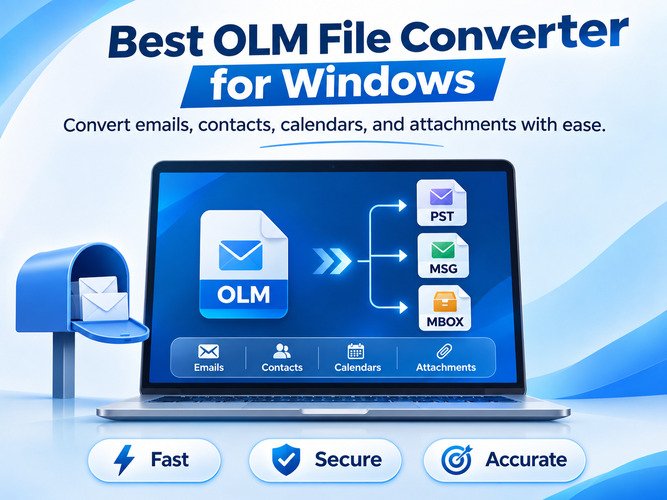
Email data migration has become a common requirement for businesses and individuals transitioning from Mac to Windows environments. One of the most frequent challenges users face is moving Outlook data from Outlook for Mac to Outlook for Windows. Because Outlook for Mac stores data in OLM format and Outlook for Windows primarily uses PST files, a conversion process is necessary. This is where an OLM to PST Converter becomes an essential solution.
An efficient converter helps users transfer emails, contacts, calendars, notes, tasks, and attachments while maintaining data integrity. In this article, we will explore the importance of an OLM to PST Converter, its key features, benefits, and the most effective conversion methods available today.
Understanding OLM and PST File Formats
Before discussing conversion methods, it is important to understand the two file formats involved.
What is an OLM File?
OLM (Outlook for Mac Archive) is a data file format developed by Microsoft for Outlook on macOS. It is used to store:
- Emails
- Contacts
- Calendars
- Tasks
- Notes
- Journal entries
- Attachments
Users often create OLM files when exporting mailbox data for backup or migration purposes.
What is a PST File?
PST (Personal Storage Table) is the primary file format used by Outlook for Windows. A PST file stores:
- Email messages
- Contacts
- Calendar items
- Tasks
- Notes
- Attachments
Since PST files are fully compatible with Windows Outlook, they serve as the preferred destination format during migration.
Why Do Users Need an OLM to PST Converter?
Many organizations and professionals switch from Mac systems to Windows-based environments. However, Outlook for Windows does not support OLM files directly.
As a result, users require an OLM to PST Converter to:
Migrate from Mac to Windows
When moving between operating systems, users need a way to access their Outlook data without losing information.
Consolidate Email Data
Companies often centralize employee mailboxes into a Windows-based Outlook environment for easier management and compliance.
Maintain Business Continuity
Email archives contain important communications, contracts, and records. Conversion ensures uninterrupted access to this information.
Facilitate Outlook Compatibility
Converting OLM files into PST allows users to work seamlessly within Microsoft Outlook for Windows.
Challenges in OLM to PST Conversion
The migration process can become complicated without the proper tools.
Compatibility Issues
OLM files cannot be opened directly in Outlook for Windows.
Data Loss Risks
Improper conversion may lead to:
- Missing emails
- Lost attachments
- Corrupted mailbox items
- Incomplete contact information
Folder Structure Disruptions
Mailbox organization may be altered during migration if the conversion process is not handled correctly.
Large Mailbox Complexity
Organizations often manage thousands of emails across multiple folders, making manual methods impractical.
These challenges highlight the importance of using a reliable OLM to PST Converter.
Key Features of an OLM to PST Converter
When selecting a conversion solution, certain features distinguish professional tools from basic utilities.
1. Complete Data Conversion
A quality converter should migrate:
- Emails
- Contacts
- Calendars
- Tasks
- Notes
- Attachments
This ensures that every mailbox component remains accessible after migration.
2. Bulk Conversion Support
Organizations often need to process multiple OLM files simultaneously.
Bulk conversion capabilities help save time and streamline large-scale migration projects.
3. Folder Hierarchy Preservation
A reliable converter maintains:
- Parent folders
- Subfolders
- Original mailbox organization
This helps users locate data easily after migration.
4. Attachment Preservation
Attachments are often critical business assets.
The converter should maintain attachment integrity while preserving email associations.
5. Metadata Retention
Important email attributes should remain unchanged, including:
- Subject lines
- Sender information
- Recipient details
- Date and time stamps
- Read/unread status
6. Preview Functionality
Preview options allow users to inspect mailbox data before conversion.
This helps verify data accuracy and avoid migration errors.
7. User-Friendly Interface
An intuitive dashboard simplifies the migration process for both technical and non-technical users.
Benefits of Using an OLM to PST Converter
Using dedicated conversion software offers several advantages over manual methods.
Faster Migration
Professional tools automate the process and significantly reduce migration time.
Instead of converting individual mailbox items manually, users can process entire archives in one operation.
Improved Accuracy
Automated conversion minimizes the risk of:
- Human errors
- Data omissions
- Formatting inconsistencies
Enhanced Data Security
Reliable software protects mailbox data during conversion and ensures file integrity.
Support for Large Mailboxes
Business users often work with large Outlook archives containing thousands of emails.
A dedicated converter can process extensive datasets efficiently.
Better Productivity
Employees can quickly regain access to their mailbox information after migration, reducing downtime.
Popular Methods to Convert OLM Files to PST
Several approaches can be used to perform the conversion.
Method 1: Using Microsoft 365 or Exchange Synchronization
This method requires:
- Outlook for Mac
- Outlook for Windows
- Microsoft 365 account
- Stable internet connection
Process
- Import the OLM file into Outlook for Mac.
- Connect Outlook to a Microsoft 365 or Exchange account.
- Synchronize mailbox data.
- Access the same account from Outlook for Windows.
- Export mailbox data into PST format if required.
Limitations
- Requires cloud infrastructure.
- Time-consuming for large mailboxes.
- Dependent on internet connectivity.
Method 2: Manual Export and Migration
Some users employ third-party workarounds involving multiple email clients.
Limitations
- Complex procedures
- Risk of data corruption
- Metadata loss
- Not suitable for enterprise migrations
Method 3: Professional OLM to PST Converter Software
This is the most efficient and reliable option for most users.
Professional solutions automate the conversion process while preserving mailbox integrity.
General Workflow
- Install the converter.
- Add the OLM file.
- Preview mailbox content.
- Select PST as the output format.
- Configure optional filters.
- Start the conversion.
- Import the resulting PST file into Outlook.
This method is generally preferred for both business and personal migration projects.
Best Practices for Successful OLM to PST Conversion
Following proven best practices can improve migration outcomes.
Create a Backup
Always maintain a copy of the original OLM file before starting conversion.
Verify Sample Data
Review several emails after conversion and check:
- Formatting
- Metadata
- Attachments
Test Before Full Migration
Perform a trial conversion on a small mailbox before processing larger archives.
Check Folder Structure
Verify that folders and subfolders remain organized.
Use Trusted Software
Selecting a reputable converter greatly reduces migration risks.
Common Mistakes to Avoid
Users often encounter problems because of avoidable errors.
Avoid:
- Converting without backups
- Interrupting the conversion process
- Ignoring attachment verification
- Using unsupported tools
- Deleting source files prematurely
Careful planning can help prevent data loss and reduce troubleshooting efforts.
How to Choose the Right OLM to PST Converter
When evaluating software solutions, consider the following factors:
Conversion Accuracy
The software should preserve all mailbox components without modification.
Processing Speed
Look for solutions capable of handling large OLM files efficiently.
Compatibility
Ensure support for your Outlook version and Windows operating system.
Customer Support
Reliable technical support can be valuable during large migration projects.
Advanced Features
Useful capabilities include:
- Batch conversion
- Selective migration
- Data filtering
- Split PST options
- Export reports
The ideal converter should balance speed, accuracy, usability, and scalability.
Conclusion
An OLM to PST Converter is an essential tool for users migrating Outlook data from Mac to Windows. Since Outlook for Windows doesn’t support OLM files, converting them to PST is often the most practical and reliable solution.
A professional converter simplifies the migration process by preserving emails, attachments, contacts, calendars, and mailbox structure while minimising the risk of data loss. Whether you are an individual user transitioning to a new computer or an organisation managing large-scale email migrations, choosing the right conversion method can ensure a smooth and successful transfer of critical Outlook data.
By understanding the available conversion methods, evaluating key software features, and following best practices, users can complete OLM-to-PST migrations with confidence and maintain complete access to their valuable email information.