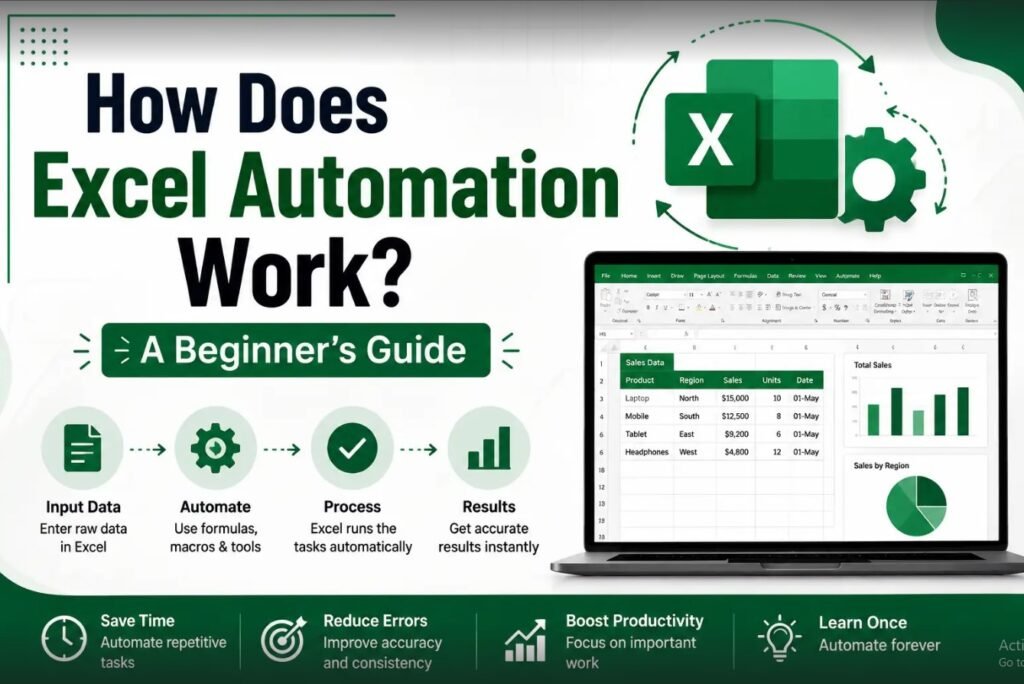
Excel is one of the most widely used spreadsheet applications for managing information, performing calculations, preparing reports, analyzing data, and organizing business records. However, when the same Excel tasks have to be repeated every day or every month, manually completing them can consume a significant amount of time.
This is where Excel automation becomes useful.
Instead of repeatedly entering formulas, formatting reports, copying information, checking data, or preparing summaries, automation allows Excel to perform many repetitive operations with minimal manual intervention.
For beginners, Excel automation may initially sound complicated because terms such as VBA, macros, Power Query, Pivot Tables, formulas, scripts, and AI are often associated with advanced spreadsheet work. In reality, automation can begin with something as simple as an Excel formula.
This complete guide explains what Excel automation is, how Excel automation works, the best Excel automation tools, how to automate repetitive tasks in Excel, how macros and VBA work, how Power Query helps automate data cleaning, and how AI can make spreadsheet automation easier.
What Is Excel Automation?
Excel automation is the process of using formulas, functions, macros, VBA, Power Query, Pivot Tables, data tools, scripts, or AI-assisted features to perform repetitive spreadsheet tasks automatically.
Normally, a user might manually enter information, calculate totals, copy formulas, format cells, filter data, and create reports.
With automation, these processes can be converted into repeatable workflows.
For example, imagine that an employee prepares a monthly sales report.
The manual process might involve:
- Opening a raw sales file.
- Copying data into another workbook.
- Applying formulas.
- Formatting headings.
- Calculating totals.
- Creating a summary.
- Preparing charts.
- Checking errors.
- Saving the report.
If the same process happens every month, much of it can potentially be automated.
The objective is not necessarily to remove humans from the process. Instead, Excel automation reduces repetitive manual work so users can spend more time checking results, interpreting information, and making decisions.
Why Is Excel Automation Important?
Businesses and professionals frequently work with repetitive spreadsheet processes.
Manual work can become problematic when a spreadsheet contains hundreds or thousands of rows.
Some common challenges include:
- Repetitive data entry
- Copying formulas
- Manual formatting
- Repeated report preparation
- Data-cleaning work
- Duplicate entries
- Calculation mistakes
- Rebuilding Pivot Tables
- Creating the same charts repeatedly
Automation can make these processes more consistent.
Saves Time
The biggest advantage of Excel automation is time savings.
A formula that automatically calculates a total can eliminate repeated calculations.
A macro can repeat a series of formatting steps.
Power Query can automate data transformation.
A Pivot Table can summarize thousands of records quickly.
Reduces Repetitive Work
People are generally better suited to reviewing information and making decisions than repeatedly performing identical computer actions.
Automation allows Excel to handle predictable tasks.
Improves Consistency
When a process is performed manually, formatting or calculation methods can change from one report to another.
An automated workflow can apply the same rules consistently.
Supports Large Datasets
Automation becomes increasingly valuable as the amount of data grows.
A process that is manageable with 20 rows can become frustrating with 20,000 rows.
How Does Excel Automation Work?
Excel automation can work through several different technologies and features.
The most common approaches include:
- Excel formulas
- Excel functions
- Data Validation
- Conditional Formatting
- Excel Tables
- Pivot Tables
- Macros
- VBA
- Power Query
- Power Pivot
- Office Scripts
- AI-assisted Excel features
Each tool has a different purpose.
You do not need to learn everything at once Excel automation for accounting
A beginner can start with formulas and gradually progress toward macros, Power Query, and more advanced automation.
1. Excel Formulas as Automation
Many people do not realize that they are already using automation when they use Excel formulas.
Suppose you have monthly sales in cells B2 through B10.
Instead of manually calculating the total, you can use:
=SUM(B2:B10)
Whenever the values change, Excel recalculates the result.
This is basic spreadsheet automation.
Useful Excel Functions for Automation
Some commonly used functions include:
- SUM
- AVERAGE
- COUNT
- COUNTA
- MAX
- MIN
- IF
- AND
- OR
- COUNTIF
- SUMIF
- SUMIFS
- XLOOKUP
- VLOOKUP
- IFERROR
- TEXTJOIN
- FILTER
- SORT
- UNIQUE
These functions can automate calculations, classification, searching, filtering, and data organization.
2. IF Function Automation
The IF function is particularly useful when a spreadsheet needs to make a decision based on a condition.
For example:
=IF(B2>=50,"Pass","Fail")
Excel automatically checks the value and returns the appropriate result.
This can be used for:
- Student results
- Employee targets
- Payment status
- Inventory levels
- Sales performance
- Attendance
- Eligibility
- Commission calculations
Instead of checking every row manually, Excel performs the logical test automatically.
3. XLOOKUP and VLOOKUP Automation
Lookup functions can automate the process of finding information in large datasets.
For example, suppose you have an employee ID and want Excel to automatically retrieve the employee’s department.
XLOOKUP can be used to search one range and return information from another range.
This is useful for:
- Employee databases
- Product lists
- Customer records
- Inventory
- Sales reports
- Price lists
- Student records
VLOOKUP remains important because many existing Excel workbooks use it. However, modern Excel users should also understand XLOOKUP.
4. Excel Tables
Converting data into an Excel Table can make automation easier.
To create a table:
- Select your dataset.
- Press Ctrl + T.
- Confirm the selected range.
- Click OK.
Tables automatically expand when new records are added in many common situations.
They also provide structured references and make sorting, filtering, formatting, and formula management easier.
For recurring reports, using an Excel Table as the source can provide a more reliable foundation for automation.
5. Data Validation in Excel
Data Validation in Excel is an important tool for controlling data entry.
For example, instead of allowing employees to type any department name, you can create a dropdown containing:
- Sales
- HR
- Accounts
- Marketing
- Operations
This helps reduce spelling differences and inconsistent entries.
Data Validation can also restrict:
- Dates
- Numbers
- Text length
- Decimal values
- Lists
Why Does Data Validation Matter for Automation?
Automation depends on predictable data.
If one person enters “Delhi,” another enters “delhi,” and another enters “DEL,” automated reports may treat them as different values.
Dropdown lists and validation rules can help standardize the input.
6. Conditional Formatting
Conditional Formatting allows Excel to automatically change the appearance of cells according to specific conditions.
For example:
- Highlight sales above a target.
- Highlight overdue payments.
- Identify low inventory.
- Highlight failed marks.
- Identify duplicate values.
- Display negative numbers differently.
This means users do not have to manually scan every row.
Conditional Formatting is particularly useful in dashboards and management reports.
7. Pivot Tables for Automated Analysis
A Microsoft Excel Pivot Table is one of the most useful tools for summarizing large datasets.
Suppose a company has 50,000 sales records.
Instead of manually calculating sales by product, city, or salesperson, a Pivot Table can summarize the information.
A Pivot Table can show:
- Total sales
- Average sales
- Number of transactions
- Sales by month
- Sales by region
- Sales by employee
- Product performance
When the source data changes, the Pivot Table can be refreshed to update its summary.
This makes Pivot Tables an important part of Excel data analysis automation.
8. Excel Macros
An Excel macro is a recorded or programmed sequence of actions that can be executed again.
Macros are useful when the same sequence of tasks is performed repeatedly.
For example, suppose every Monday you:
- Open a report.
- Format headings.
- Adjust column widths.
- Apply filters.
- Add totals.
- Format numbers.
- Save the file.
A macro can potentially automate many of these steps.
Instead of performing every action manually, you can run the macro.
9. What Is VBA in Excel?
VBA, or Visual Basic for Applications, is a programming language integrated into Microsoft Office applications.
Excel VBA can be used to create more advanced automation.
While recorded macros are useful for simple tasks, VBA allows developers to build customized workflows.
VBA can be used to:
- Create automated reports
- Manipulate worksheets
- Process data
- Create buttons
- Open and close workbooks
- Format reports
- Generate documents
- Perform repetitive calculations
- Automate multiple spreadsheet operations
Beginners do not need to become programmers immediately.
A practical approach is to first understand Excel formulas and recorded macros, then gradually learn VBA.
10. Power Query for Excel Automation
Power Query is particularly useful when data comes from different sources.
For example, a company might receive monthly sales files from different branches.
Each file may require:
- Removing unnecessary columns
- Changing data types
- Removing blank rows
- Cleaning text
- Combining files
- Renaming columns
- Filtering records
how to automate Excel tasks for beginners Performing these operations manually every month is inefficient.
Power Query allows users to create a repeatable transformation process.
Once the process has been configured, new data can often be processed by refreshing the query.
This makes Power Query one of the most valuable tools for automating Excel data cleaning.
11. Automating Excel Reports
A common business use of automation is report generation.
Imagine a company that creates a sales report every month.
An automated reporting workflow might include:
Raw Data → Data Cleaning → Calculations → Pivot Table → Charts → Dashboard
The user may only need to replace or refresh the source data.
The calculations and summaries can then update according to the configured workflow.
This approach can significantly reduce repetitive reporting work.
12. Excel Dashboard Automation
Excel dashboards combine data, charts, summaries, and key performance indicators into one interface.
A dashboard can be designed to display:
- Revenue
- Expenses
- Profit
- Sales targets
- Customer count
- Product performance
- Regional performance
Automation can make dashboards more useful.
For example, if the source data is updated regularly, formulas, Pivot Tables, charts, and other connected elements can be refreshed.
The result is a reporting system that requires less manual preparation.
13. Excel Automation for Accounting
Accountants frequently work with repetitive spreadsheet tasks.
Excel automation can support:
- Expense reports
- Salary calculations
- Sales summaries
- Purchase reports
- Payment tracking
- Budget preparation
- Reconciliation
- Financial analysis
For example, an accounting team might receive transaction data every week.
Instead of manually categorizing every transaction, formulas or Power Query can help transform the information according to predefined rules.
Excel can also be used alongside accounting software such as Tally Prime when users need additional analysis or customized reports.
14. Excel Automation for HR
Human resources departments can also benefit from spreadsheet automation.
Common examples include:
- Employee databases
- Attendance records
- Leave tracking
- Salary calculations
- Performance reports
- Employee lists
- Joining and leaving reports
For example, a dropdown can standardize department names while formulas automatically calculate employee tenure or leave balances.
15. Excel Automation for Sales
Sales teams frequently maintain large amounts of information.
Automation can help with:
- Sales totals
- Target tracking
- Commission calculations
- Customer lists
- Product performance
- Monthly reports
- Regional analysis
A sales dashboard can automatically summarize information using formulas and Pivot Tables.
16. Excel Automation Using AI
Artificial intelligence is increasingly becoming part of spreadsheet workflows.
AI-assisted Excel features can help users work with data using natural-language instructions, depending on the Excel version and available Microsoft 365 features.
For example, instead of manually constructing a complicated formula, a user may describe the desired result and use an AI-assisted feature to help generate or explain the formula.
AI can also assist with:
- Formula suggestions
- Data analysis
- Summaries
- Chart creation
- Identifying trends
- Explaining formulas
- Cleaning certain types of data
However, AI-generated formulas and analysis should always be reviewed.
Automation should make work easier, but accuracy remains the responsibility of the person using the spreadsheet.
17. Office Scripts and Modern Excel Automation
For users working with Excel on supported Microsoft 365 environments, Office Scripts provide another automation option.
Office Scripts can automate repetitive actions in Excel, particularly in web-based workflows.
They can be useful when organizations want repeatable spreadsheet processes without relying exclusively on traditional VBA.
The best automation technology depends on the environment, Excel version, workflow, and technical requirements.
How to Start Excel Automation as a Beginner
You do not need advanced programming knowledge to begin.
Follow a gradual learning path.
Step 1: Learn Excel Basics
Understand:
- Cells
- Rows
- Columns
- Worksheets
- Workbooks
- Formatting
- Basic calculations
Step 2: Learn Basic Formulas
Start with:
- SUM
- AVERAGE
- COUNT
- MAX
- MIN
Step 3: Learn Logical Functions
Move to:
- IF
- AND
- OR
- IFERROR
- COUNTIF
- SUMIF
- SUMIFS
Step 4: Learn Lookup Functions
Practice:
- VLOOKUP
- XLOOKUP
- INDEX
- MATCH
Step 5: Learn Data Tools
Learn:
- Tables
- Filters
- Sorting
- Conditional Formatting
- Data Validation
Step 6: Learn Pivot Tables
Use Pivot Tables to summarize real datasets.
Step 7: Learn Power Query
Start with basic data cleaning and combining files.
Step 8: Learn Macros
Record simple macros to automate repetitive formatting and reporting.
Step 9: Learn VBA or Office Scripts
Move to programming only when your workflow requires more advanced customization.
Example of a Simple Excel Automation Workflow
Imagine that a business receives a monthly sales spreadsheet.
The raw file contains:
- Date
- Customer
- Product
- Region
- Quantity
- Sales Amount
The automation workflow could be:
Step 1: Import the data.
Step 2: Use Power Query to clean the dataset.
Step 3: Convert the cleaned data into an Excel Table.
Step 4: Use formulas to calculate additional values.
Step 5: Create a Pivot Table.
Step 6: Create charts from the summary.
Step 7: Build a dashboard.
Step 8: Refresh the workflow when new data arrives.
This is a good example of how multiple Excel features can work together.
Common Excel Automation Mistakes
Automation is powerful, but it can create problems when implemented incorrectly.
Automating Dirty Data
If the original data is inconsistent, automation may simply process incorrect information faster.
Always clean and validate important data.
Overcomplicating the Workbook
A workbook containing unnecessary formulas, macros, and connections can become difficult to maintain.
Keep the automation as simple as possible.
Not Testing Automation
Always test an automated process using sample data before using it for important business reporting.
Trusting AI Without Verification
AI can assist with formulas and analysis, but users should verify important outputs.
Ignoring Refresh Settings
Pivot Tables and data connections may require refreshing.
Always understand where the data comes from and when it is updated.
Forgetting Backup Copies
Before changing an important workbook, keep a backup.
This is particularly important when using macros or automated processes that modify data.
Excel Automation Best Practices
A good automated workbook should be:
- Easy to understand
- Well organized
- Properly documented
- Tested regularly
- Based on clean data
- Protected where necessary
- Easy to update
- Simple enough to maintain
Use clear worksheet names and meaningful column headings.
Avoid unnecessary complexity.
If other employees will use the workbook, provide simple instructions.
Frequently Asked Questions About Excel Automation
What is Excel automation in simple words?
Excel automation means using Excel features such as formulas, macros, VBA, Power Query, Pivot Tables, scripts, or AI tools to perform repetitive tasks automatically.
Can beginners automate Excel?
Yes. Beginners can start with formulas, Tables, Data Validation, Conditional Formatting, and Pivot Tables before learning macros and VBA.
Do I need programming knowledge for Excel automation?
No. Many useful automation features do not require programming. Programming becomes useful when you need more customized automation.
What is the easiest way to automate Excel tasks?
Start by identifying a repetitive task and determine whether a formula, Excel Table, Data Validation rule, Pivot Table, Power Query process, or macro can perform it automatically.
Is VBA necessary for Excel automation?
No. VBA is one automation option, but Excel provides many other tools that can automate tasks without traditional programming.
Can Power Query automate Excel data cleaning?
Yes. Power Query is designed to import and transform data through repeatable steps, making it particularly useful for recurring data-cleaning workflows.
Can Pivot Tables automate reporting?
Pivot Tables can automatically summarize data after the source information is updated and the Pivot Table is refreshed. They are particularly useful for recurring analysis.
Can AI automate Excel?
AI-assisted Excel features can help with tasks such as formula generation, data analysis, summaries, and other spreadsheet activities, depending on the Excel version and available features. Users should verify important AI-generated results.
What should I learn first for Excel automation?
Start with Excel basics, formulas, IF, lookup functions, Tables, Data Validation, Conditional Formatting, and Pivot Tables. Then progress to Power Query and macros.
Excel Automation Learning Roadmap
A simple roadmap can help you progress without becoming overwhelmed.
Beginner
Excel basics → Formatting → Basic formulas → Tables → Sorting and Filtering
Intermediate
IF → COUNTIF → SUMIF → XLOOKUP → Conditional Formatting → Data Validation → Pivot Tables
Advanced
Power Query → Advanced formulas → Dashboards → Macros → VBA
Professional
Advanced Power Query → Power Pivot → Office Scripts → AI-assisted workflows → End-to-end reporting automation
The most important point is to practice each skill using realistic datasets.
Final Thoughts
Excel automation is not simply about making spreadsheets faster; it is about creating repeatable processes that reduce unnecessary manual work and improve consistency.
From a simple SUM formula to sophisticated Power Query workflows, VBA macros, dashboards, Pivot Tables, and AI-assisted tools, Excel offers multiple ways to automate everyday tasks.
Beginners should not feel pressured to learn programming immediately. Start with formulas and functions. Then learn Tables, Data Validation, Conditional Formatting, and Pivot Tables. Once these concepts become comfortable, move toward Power Query and macros.
The goal should always be to solve a real problem.
If you spend an hour every week performing the same task, ask whether Excel can perform part of that task automatically. That question is often the first step toward useful automation.
With regular practice, Excel automation skills can become valuable for accounting, finance, sales, HR, administration, education, business management, and data analysis.
For more practical tutorials covering MS Excel, Advanced Excel, Tally Prime, accounting, computer shortcuts, and other computer skills, continue exploring the tutorials available on
READ MORE : UseOfComputer.in.