10 Tips for Splitting Your Outlook PST File Successfully
Are you feeling the strain of a bloated Outlook PST file? If managing your emails and data feels like a daunting task, you’re not alone. As we accumulate more messages, attachments, and calendar items over time, our PST files can become unwieldy. But fear not! Splitting your Outlook PST file is an effective solution that can bring back organization and performance to your email experience.
In this guide, we’ll explore practical tips for splitting your Outlook PST file successfully. From understanding what a PST file is to identifying signs that it needs attention, we’ve got you covered. Whether you’re dealing with slow loading times or facing storage issues, breaking up that hefty file will pave the way for smoother sailing in your digital workspace. Let’s dive into how you can reclaim control over your inbox today!
What is a PST File and Why Should You Split It?
A PST file, or Personal Storage Table, is a data file used by Microsoft Outlook to store emails, contacts, calendar events, and other items. It serves as a local repository for your important information when using Outlook in offline mode.
Over time, these files can grow significantly in size due to the accumulation of messages and attachments. A bloated PST file not only takes up valuable disk space but can also lead to performance issues like slow loading times or even corruption.
Splitting your PST file helps manage this data more effectively. By breaking it into smaller segments, you can enhance Outlook’s speed and efficiency while ensuring your vital information remains accessible. This proactive approach prevents potential headaches down the line caused by large files that may become unmanageable or prone to errors during operations.
Benefits of Splitting Your Outlook PST File
Splitting your Outlook PST file offers several advantages that can significantly enhance your email management experience. A smaller PST file is easier to navigate, making it quicker to find important emails and attachments.
Performance is another key benefit. Large files can slow down Outlook’s performance, leading to frustrating delays when opening or searching for messages. By keeping your PST file size manageable, you help maintain optimal speed and efficiency.
Increased stability is crucial as well. A bloated PST file is more prone to corruption, which can lead to data loss. Splitting the file minimizes this risk, ensuring your valuable information remains intact.
Additionally, organizing your data into multiple smaller files allows for better categorization of emails, contacts, and calendars. This organization simplifies backup processes and makes it easier when migrating data between systems or recovering from crashes.
Signs That Your PST File Needs to Be Split
Your PST file may be nearing its limit if you notice sluggish performance when opening or navigating Outlook. A delay in loading emails can be more than just an annoyance; it could signal that your file is overloaded with data.
Frequent error messages when trying to send or receive emails are another red flag. These errors often indicate that the PST file has reached its maximum size and needs attention.
You might also encounter issues like corrupted files or missing items, which suggest it’s time to take action.
If you’re constantly archiving old emails but still feeling cramped for space, that’s a strong sign too. An unwieldy PST can lead to lost productivity and increased frustration as you manage your inbox chaos.
Stay alert for these symptoms; they’re crucial indicators of whether splitting your Outlook PST file should be on your agenda.
How to Determine the Right Size for Your PST File
Determining the right size for your PST file is crucial to maintaining optimal performance in Outlook. An oversized PST can lead to slow loading times and potential corruption.
Start by evaluating how much data you currently have. Consider factors like emails, attachments, calendar entries, and contacts. A good rule of thumb is to keep your PST file under 20 GB if you’re using older versions of Outlook. For newer versions, you might push this limit a bit further.
Next, think about how often you archive or delete old items. Frequent clean-ups can help manage the size effectively.
Also consider future growth; if you’re expecting an influx of new emails or documents soon, it may be wise to create smaller PST files now rather than later when things could get overwhelming.
Monitor your usage regularly so that any issues are caught early before they escalate into bigger problems with your email management system.
Available Tools for Splitting Your PST File
When it comes to splitting your Outlook PST file, several tools can make the process smoother. These applications often offer user-friendly interfaces and reliable functionality.
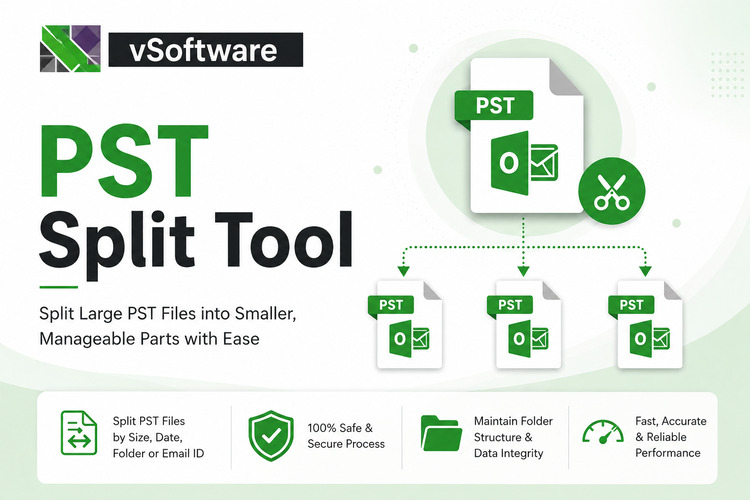
One popular choice is vMail PST Splitter. This tool allows users to divide large PST files based on size, date, or folder. Its intuitive design makes it accessible for both novices and experienced users.
Another option is Kernel for PST Split. It not only splits files but also maintains data integrity throughout the process. Users appreciate its batch processing feature, which saves time when dealing with multiple files.
For those seeking a free solution, you might explore SysTools Splitter for Outlook PST. While it has fewer features than premium versions, it’s effective for smaller tasks without any cost involved.
Consider your specific needs when choosing a tool to ensure seamless management of your Outlook data while maintaining optimal performance.
Step-by-Step Guide for Using Outlook’s Built-in Split Feature
To use Outlook’s built-in split feature, start by opening your Outlook application. Navigate to the “File” menu and select “Account Settings.” Here, you’ll find options related to data files.
Next, choose the PST file you want to split. Click on “Open File Location” to access the folder where your PST files are stored.
Once there, create a new PST file by returning to Outlook’s “File” menu and selecting “New Items,” then “More Items,” followed by “Outlook Data File.” Name it descriptively for easy identification.
Now comes the fun part: drag and drop items from your original PST into this new one. You can select folders or individual emails based on what you wish to transfer.
Make sure everything is organized as per your preference. After completing this process, don’t forget to compact both files for better performance in Outlook!
Alternative Methods for Splitting a PST File
If you’re looking for alternative methods to split a PST file, several options are available beyond Outlook’s built-in feature. One popular method involves using third-party software designed specifically for managing PST files. These tools can help you divide large files efficiently while ensuring data integrity.
Another approach is manually creating new PST files and transferring specific folders or emails from the original file. This method requires some effort but allows for precise control over what stays with the original file and what gets moved.
Additionally, consider using Windows’ export function to create separate copies of your mail items in smaller batches. By selecting only certain folders or date ranges, you can keep your primary PST manageable without losing important information.
Each of these methods has its benefits, depending on your unique needs and technical comfort level. Choose one that best fits into your workflow strategy.
Best Practices for Successfully Splitting Your PST File
To achieve success when splitting your Outlook PST file, there are several best practices to keep in mind. Start by backing up your original PST file before making any changes. This provides a safety net should anything go wrong during the splitting process.
Next, determine an appropriate size for each new PST file based on your storage needs and potential future growth. Keeping files manageable will help with organization and retrieval later on.
Use reliable tools designed specifically for managing PST files. Many third-party options offer features that could simplify the process significantly compared to manual methods.
Regular maintenance of your email data is also key; periodically review and archive older emails or those no longer needed. By doing so, you can prevent excessive accumulation in the first place.
Stay informed about updates or recommendations from Microsoft regarding Outlook and its functionalities. Technology evolves quickly, and being aware of new features may make handling PST files easier down the line.
By following these practices, you can ensure a smoother experience while splitting your Outlook PST file effectively.